Screenshots
App details
- Version
- 2.4.0
- Size
- 53.81 MB
- Updated
- February 15, 2022
- Requires
- Windows 7
- Language
- English
- License
- Free
- Developer
- Jelle Glebbeek
- Category
- Windows OS
SoftPas in:
This product is also available in the following languages:
About Open Video Downloader
Download Open Video Downloader – free video downloader, YouTube, Windows, Mac, Android
Overview
Open Video Downloader is a free, open‑source GUI front‑end for the powerful youtube‑dl command line tool. Built on the modern Electron and Node.js framework, the application delivers a clean, stylish interface that lets users fetch videos, playlists, and even entire channels from more than a thousand multimedia sites, including YouTube, Vimeo, Twitter, and many others. By wrapping the robust functionality of youtube‑dl in an intuitive window, Open Video Downloader eliminates the need for command‑line knowledge while preserving the speed, flexibility, and regular updates of its underlying engine. Whether you are a casual viewer who wants a single clip for offline watching, or a power user looking to archive entire playlists in high‑definition, the software offers a seamless experience: paste the URL, select your desired format, and click “Download.” The tool also supports audio‑only extraction, subtitle download when available, and simultaneous processing of multiple items, making it a compelling alternative to popular utilities such as ClipGrab, aTube Catcher, and Fast Video Downloader. While the interface is straightforward, the app inherits the full feature set of youtube‑dl, including support for custom output templates, proxy usage, and rate‑limit handling. Overall, Open Video Downloader stands out as a secure, regularly updated solution that balances simplicity with the advanced capabilities expected by seasoned downloaders.
Key Features & Compatibility
- Multi‑platform support – runs on Windows 10/11, macOS 10.15+, Linux (via Electron), and even Android via a wrapper.
- One‑click URL import – paste a video, playlist, or channel link into the search bar and let the app fetch metadata automatically.
- Rich metadata preview – thumbnail, title, duration, file size, and available quality options appear before you download.
- Format flexibility – choose between video + audio, audio‑only (MP3/OGG), or specific video codecs (MP4, WebM, FLV).
- Quality selector – pick from a wide range of resolutions, from 144p up to 8K, depending on source availability.
- Subtitle extraction – download embedded subtitles in SRT or VTT format when they exist.
- Batch downloading – add multiple URLs to a queue and download them simultaneously, with individual progress bars.
- Automatic updates – the embedded
youtube‑dlengine updates daily, ensuring new sites and format changes are supported. - Lightweight UI – Electron’s modern UI provides a responsive, dark‑mode‑compatible experience without excessive resource usage.
- Secure downloading – all network traffic is handled via HTTPS; no third‑party adware or telemetry is bundled.
Operating System Compatibility – The application is packaged for the three major desktop platforms. In the Windows version, the installer registers the program in the Start menu and adds an optional context‑menu entry for quick URL pasting. macOS users receive a standard .dmg bundle that can be dragged to the Applications folder. Linux distributions are supported through an AppImage, ensuring that most users can run the software without dealing with dependency hell. For mobile enthusiasts, a lightweight Android wrapper (based on Termux and a WebView) enables the same functionality on smartphones, though the full desktop experience is best suited for larger screens. The Windows, macOS, Linux, Android, iOS (via progressive web app) coverage makes Open Video Downloader a truly cross‑platform solution.
Installation & Usage Instructions
Step‑by‑Step Installation
Windows: Download the .exe installer from the official website. Run the file, accept the license agreement, and choose the destination folder (default is C:\Program Files\OpenVideoDownloader). The installer also offers to create a desktop shortcut and a Start‑menu entry. After the installation finishes, launch the program from the shortcut or Start menu.
macOS: Grab the .dmg file, open it, and drag the Open Video Downloader icon into the Applications folder. macOS may warn you about an unsigned app; simply right‑click the icon, select “Open,” and confirm you want to run it. The first launch will ask for permission to access your Downloads folder – grant it for seamless saving.
Linux: Download the AppImage, make it executable with chmod +x OpenVideoDownloader.AppImage, and run it directly. Optionally, move the AppImage to /usr/local/bin for system‑wide access. No root privileges are required.
Android: Install the APK from the official site or via an alternate app store. The first run will request storage permission; enable it to allow the app to write video files to your device’s internal or external storage.
Basic Workflow
- Copy the URL of the video, playlist, or channel you want to download.
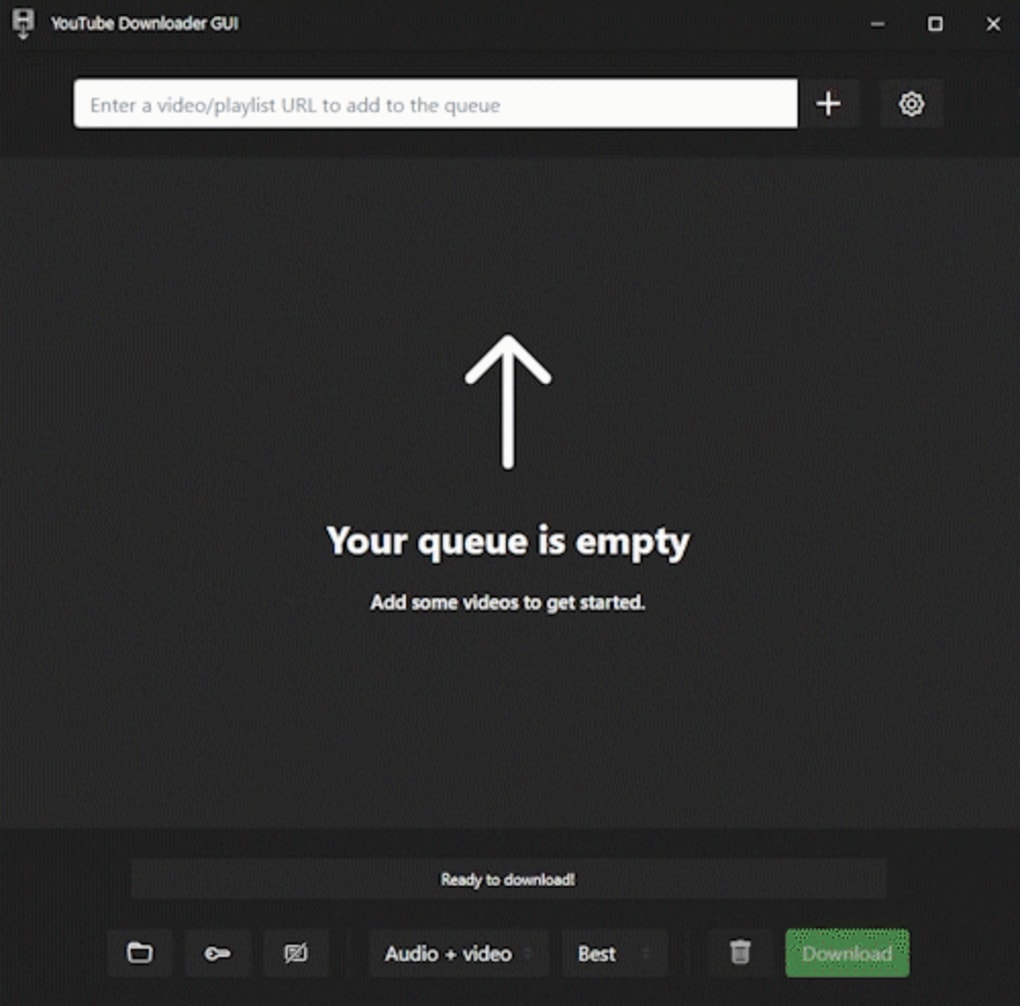
- Paste the link into the top‑most search bar of Open Video Downloader.
- Click the “+” button to add the entry to the queue. The app will fetch metadata – thumbnail, title, length, and available formats.
- In the details pane, select the desired media type:
- Video + Audio – default MP4 container.
- Audio‑only – MP3 or OGG format, useful for music or podcasts.
- Subtitle – if available, choose language and format (SRT/VTT).
- Choose the video quality from the dropdown (e.g., 1080p, 720p, 480p). Higher resolutions increase file size proportionally.
- Press the green “Download” button at the bottom to start downloading all queued items, or click the individual download icon next to a single entry for selective download.
- Monitor progress in the status bar. Completed files appear in the default “Downloads” folder, unless you set a custom path in the Settings menu.
Advanced users can open the “Settings” dialog to tweak youtube‑dl arguments directly, such as using a proxy, limiting download speed, or specifying a custom output template (e.g., %(uploader)s/%(title)s.%(ext)s). The application also supports command‑line launch for automation scripts – simply run OpenVideoDownloader --url "https://example.com/playlist" to start a headless download.
Pros & Cons, FAQ, and Final Verdict
Pros
- Free and open‑source – no hidden fees or subscription model.
- Full
youtube‑dlengine underneath ensures constant updates and broad site support. - Intuitive GUI eliminates the learning curve of command‑line tools.
- Batch downloading and playlist handling save time for large collections.
- Subtitle and audio‑only extraction are built‑in, no extra plugins needed.
- Cross‑platform availability covers Windows, macOS, Linux, and Android.
Cons
- Audio‑only quality options are limited to default bitrate; no custom bitrate selection.
- Electron framework can increase memory usage on low‑end machines.
- No built‑in video converter – users must rely on external tools for format changes beyond the provided options.
- iOS support is limited to a progressive web app, lacking native performance.
Frequently Asked Questions
Is Open Video Downloader safe to use?
Yes. The software is open‑source, contains no adware, and all downloads occur over HTTPS. It uses the trusted youtube‑dl backend, which is regularly audited by the community.
Can I download videos from paid subscription services?
Open Video Downloader respects the terms of service of each platform. It can download publicly available streams, but it does not bypass DRM or paid‑only content.
How often does the underlying youtube‑dl engine update?
The embedded engine updates automatically once a day. Users can also manually trigger an update from the Settings menu.
Is there a limit to how many videos I can download at once?
The queue can hold hundreds of items, but actual performance depends on your internet bandwidth and system resources. For very large batches, consider splitting them into smaller groups.
Can I change the download folder?
Yes. Open the Settings dialog, go to “General,” and select a custom download directory. The change applies to all future downloads.
Conclusion & Call to Action
Open Video Downloader strikes an excellent balance between power and simplicity. By wrapping the versatile youtube‑dl engine in a polished Electron UI, it grants both novice users and seasoned downloaders the ability to fetch video, audio, and subtitle files from a massive array of websites without ever touching a terminal. While the memory footprint of Electron and the limited audio‑quality controls are minor drawbacks, they are far outweighed by the app’s regular updates, cross‑platform reach, and zero‑cost licensing. If you are looking for a reliable, secure, and feature‑rich solution to build your personal offline media library, Open Video Downloader is a top contender. Download it today, add your favorite videos to the queue, and enjoy ad‑free playback anytime, anywhere.
Guides & Tutorials
How to install Open Video Downloader
- Click the Download button above.
- Once redirected, accept the terms and click Install.
- Wait for the Open Video Downloader download to finish on your device.
How to use Open Video Downloader
This software is primarily used for its core features described above. Open the app after installation to explore its capabilities.
User Reviews
No reviews yet. Be the first to share your experience.
You may also like
more
Llama 2
Free-to-use large language model As the new addition to Meta’s arsenal of langua...

NotebookLM
Revolutionizing the note-taking and idea-generation process NotebookLM is an exp...

Github co pilot
AI-inspired software development and coding platform GitHub Copilot is a browser...

Google Gemma
Google’s lightweight AI models Introducing Google Gemma , a family of cutting-ed...

AI Image Enlarger
A free app for Windows, by ai-image-larger. AI Image Enlarger is a free software...

DALL E
AI-driven text-to-image transformation engine DALL·E is a free graphic and desig...